
Every SEO professional has had this conversation.
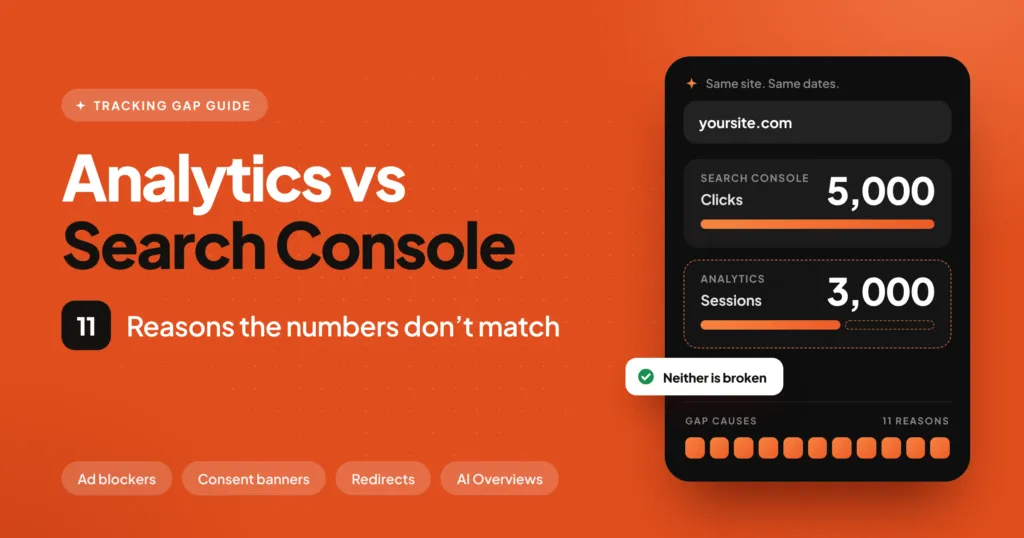
A client opens two browser tabs. One shows Google Search Console. One shows Google Analytics. Same website. Same date range. Completely different numbers.
“Which one is broken?” they ask.
The honest answer: neither. Both tools are working exactly as designed. They just measure completely different things, using different methods, at different points in the user journey.
That gap between the two — sometimes 20%, sometimes 40%, occasionally more — isn’t a glitch. It’s a reflection of how the modern web actually works. Ad blockers, privacy browsers, JavaScript failures, redirect chains, consent banners, Android app behavior — every one of these contributes to the number you see in Analytics being lower than what Search Console records.
Understanding why the gap exists, how big it should be, and when it signals a real problem — that’s one of the most practical things you can know about your site’s SEO measurement.
This article covers all of it. In full.
The Fundamental Difference: Clicks vs Sessions
Before we get into the specific causes, it helps to understand what each tool is actually counting.
Google Search Console counts clicks.
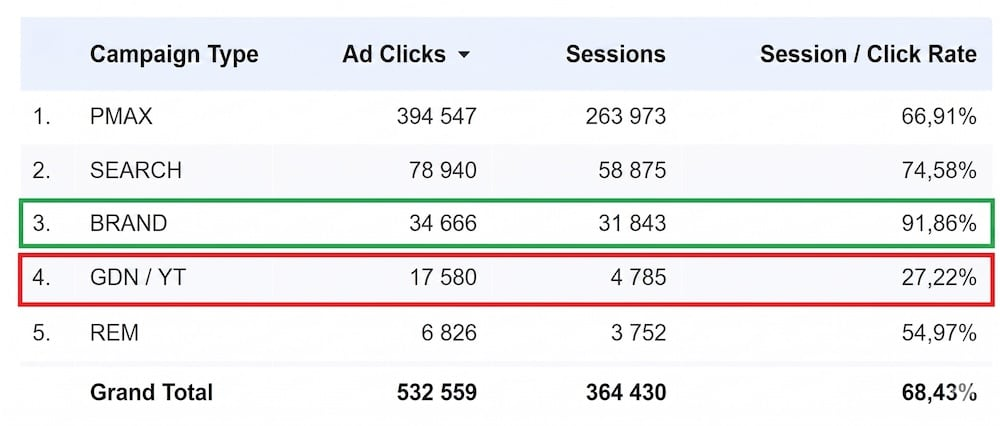
Every time someone clicks your link in a Google Search result, Discover feed, or Google Images result, Search Console records that click. It doesn’t matter what happens next. The page could fail to load. The user could immediately hit the back button. Their internet could cut out at that exact moment. Search Console already counted it.
Google Analytics 4 counts sessions.
A session in GA4 only registers when two things happen successfully: the page loads, and the GA4 tracking script executes. If the page loads but the script is blocked, the session doesn’t record. If the script loads but fires incorrectly, the session might record on the wrong page or not at all.
Same human being. Same click. One tool logged it, the other didn’t.
This is the core of the discrepancy and it matters enormously when you’re trying to understand your real organic performance. The SEO audit we run for every new client includes a full tracking audit precisely because this gap is so often misunderstood — and misreported.
What Google Just Updated
On November 12, 2026, Google added a new page to Search Central that officially documents the HTTP referrer values Google Search sends when a user clicks through to your site.

This matters because analytics tools have always relied on referrer headers to identify Google traffic. Now Google has formally listed exactly what those values look like — and explained why some visits arrive with no referrer at all.
The page confirms that Google uses an origin referrer policy, meaning it strips everything except the scheme and host. So your analytics tool sees https://www.google.com/ or a country-specific domain like https://www.google.com.au/, but it never sees the path, the search query, or any other detail from the results page.
That’s why the actual search terms that bring people to your site are only available inside Search Console’s Performance report. Analytics can confirm that Google sent someone. It cannot tell you what they searched for.
One important note: the page does not yet cover traffic from AI Overviews or AI Mode — a gap we’ll discuss later.
Eleven Reasons Your Numbers Don’t Match
1. Ad Blockers and Privacy Extensions
This is the single biggest driver of the discrepancy for most websites.
Estimates vary, but research consistently shows that 25–45% of desktop users and 15–25% of mobile users have some form of content blocking installed. uBlock Origin, AdBlock Plus, Privacy Badger, and similar tools often block analytics tracking scripts by default or by rule.
When a user with an ad blocker visits your site, Search Console sees the click. The GA4 script never loads. The session never records.
For certain audiences — tech-savvy users, developers, B2B professionals — this percentage can be significantly higher. If your audience skews technical, expect a larger gap.
2. Browser Privacy Modes
Incognito mode in Chrome, private browsing in Firefox, and InPrivate in Edge all handle tracking differently depending on the browser version and user settings. Some strip the HTTP referrer entirely. Others allow tracking scripts to load but block certain cookies that session continuity depends on.
Brave Browser takes this further — its default fingerprinting protection and aggressive tracker blocking means a significant portion of Brave users are simply invisible to standard GA4 implementations.
This isn’t something you can fix. It’s a deliberate privacy choice by the user, and analytics tools are designed to respect it.
3. The Script Has to Execute Before the User Leaves
Here’s one people often overlook.
Search Console records your click the instant someone selects your link. That happens on Google’s end, completely outside your control. Analytics, however, needs your page to load, your DOM to render, and your GA4 script to execute — all before the user navigates away.
If someone clicks your result and immediately decides it’s not what they wanted and hits the back button within two or three seconds, Search Console has the click. If your GA4 script hadn’t fired yet, Analytics has nothing.
Slow page load speeds make this problem worse. The longer it takes for your page to respond, the larger the window where clicks can happen and sessions can’t be recorded. This is one of the reasons Core Web Vitals improvement isn’t just about rankings — it directly affects how accurately your own analytics captures traffic.
4. Android Google App Traffic
The Google app on Android sends referrer values differently depending on how the link is opened.
When a link opens in a Chrome tab, it typically sends a standard https://www.google.com/ referrer. But when the Google app opens the link in its own in-app browser or as a Chrome Custom Tab, it may send android-app://com.google.android.googlequicksearchbox/https/www.google.com as the referrer instead.
If your GA4 channel grouping rules don’t include that value, that traffic gets bucketed into Direct or Other — not Organic Search. The session gets recorded, but it’s invisible in your organic traffic reports.
This is a technical SEO configuration issue rather than a data loss issue, but it distorts your channel reporting significantly.
5. Client-Side Redirects
Standard server-side 301 redirects pass the original referrer through correctly. When someone clicks your result and your server redirects them to the final URL, the referrer from Google travels with them and analytics captures it properly.
JavaScript-based redirects are different. When a redirect is handled in the browser via JavaScript — window.location.href or similar — the referrer is replaced with your own domain. Analytics sees an internal navigation rather than a Google click.
This is extremely common on sites using certain page builders, single-page application frameworks, or CMS plugins that handle redirects client-side. It’s one of the first things we check in a technical SEO audit because the symptoms — unusually high Direct traffic, unusually low Organic traffic — look exactly like a tracking failure when they’re actually a redirect configuration issue.
6. Consent Management Platforms
If your site shows a cookie consent banner — especially in the EU, UK, or Australia where privacy regulations require it — analytics scripts typically don’t load until the user accepts.
A visitor who lands on your page, reads the cookie banner, declines or simply ignores it, and then navigates away has generated a Search Console click with zero analytics data.
Depending on your audience geography and how your consent implementation is configured, this can account for 5–25% of lost sessions on its own. For European sites in particular, it’s often the dominant cause of the gap.
7. Data Sampling in GA4 Reports
This one is specific to how you’re viewing your data inside GA4 rather than actual tracking loss.
GA4 uses data sampling in some reports — particularly in Explorations and certain custom report configurations — when the dataset exceeds certain thresholds. When sampling is active, GA4 is showing you an extrapolated estimate rather than actual session counts.
You can check whether a report is sampled by looking for the sampling indicator in the report header. For unsampled data, use BigQuery export (available on GA4 360) or pull from the GA4 Data API directly.
If you’re comparing sampled GA4 data against unsampled Search Console data, the gap will be artificially inflated or deflated depending on the sampling rate.
8. Date and Time Zone Mismatches
This one is surprisingly common and embarrassingly simple.
Search Console and GA4 can be configured with different time zones. If your Search Console property is set to US Eastern Time and your GA4 property is set to UTC, the same day’s traffic will be split differently across the midnight boundary. When you pull the same date range from both tools, you’re actually comparing slightly different windows of time.
Always verify that both properties are set to the same time zone before comparing data. It won’t close a large gap, but it eliminates a persistent source of confusion in daily and weekly reporting.
9. Bot and Crawler Traffic in Search Console
This is less common but worth knowing.
Automated crawlers, scrapers, and bots that visit your site via Google results pages can generate Search Console clicks in certain situations. These won’t generate GA4 sessions because bots don’t execute JavaScript tracking.
For most sites this is negligible, but for high-traffic pages with significant bot activity, it’s a contributor.
10. Filtered or Excluded Traffic in GA4
Depending on how your GA4 property is configured, certain traffic may be intentionally excluded from reports. Internal IP addresses are commonly filtered out — if you or your team visit the site regularly, those sessions won’t appear in analytics. Search Console doesn’t distinguish between your team and your customers — it counts all clicks.
Similarly, if you have referral exclusions set up incorrectly, some traffic channels can be misclassified or dropped from totals.
11. Hits That Never Complete
GA4 uses a measurement protocol that sends hit data to Google’s servers when tracking events fire. If a user’s connection drops between the page loading and the hit being sent, the session is lost.
This is more relevant for mobile users on unstable connections, but it’s a real contributor to the gap — particularly in regions with inconsistent mobile coverage.
Discover, Images, and AI: The Attribution Problem
Here’s something that surprises even experienced SEOs.
Google Discover traffic and Google Images traffic carry the exact same referrer values as regular Google Search traffic. So when your analytics tool sees https://www.google.com/, it has no way of knowing whether that person came from:
- A regular Search result
- A Google Discover card in their feed
- A Google Images result
- The Google app’s suggestions
They all look identical in analytics.

The only way to separate these is inside Search Console itself, using the Discover report and the Search Appearance filter in the Performance report. If you need to know how much of your Google traffic is coming from Discover versus Search, that data only lives in GSC.
This matters because Discover traffic behaves differently from Search traffic. It has different intent signals, different click-through patterns, and different content requirements. If you’re attributing all of your google.com referral traffic to “organic search” in your reporting, you may be misunderstanding what’s actually driving your numbers.
AI Overviews and AI Mode: The New Measurement Gap
Google’s updated referrer documentation — published November 12 — does not cover traffic from AI Overviews or Google’s AI Mode.

This is a significant omission, and it reflects a broader measurement problem that’s going to grow as AI-generated answers become a more central part of how Google responds to queries.
Right now, the standard Performance report in Search Console counts clicks from both AI Overview links and regular organic results without distinguishing between them. There’s no search appearance type in GSC that separates AI Overview clicks from standard 10-blue-links clicks.
What this means practically: if someone clicks a link cited in an AI Overview and lands on your page, that shows up in your Search Console data as a regular organic click. You can’t filter it out. You don’t know it happened through an AI-generated answer rather than a traditional result.
This is one of the core reasons AEO — Answer Engine Optimization has become increasingly important. If your content isn’t structured to appear as a cited source in AI-generated answers, you’re missing an entire discovery surface. And if it is appearing there, you likely don’t have clean data to prove it yet.
We expect Google to add AI Mode and AI Overview as separate search appearance types in Search Console eventually. Until then, tracking your AI search visibility requires dedicated tools rather than relying on GSC or GA4 alone.
How Big Should the Gap Be?
There’s no universal benchmark because every site is different, but here are rough ranges based on real client accounts:
15–25% gap: Normal for most content and service sites with standard analytics implementation. Primarily driven by ad blockers and privacy mode users.
25–40% gap: Common for sites with significant EU/AU traffic behind consent banners, or B2B audiences with high ad blocker adoption.
40%+ gap: Usually indicates a specific technical issue. Suspect client-side redirects replacing referrers, GA4 script firing on wrong events, duplicate tracking tags inflating one number, or a consent configuration that blocks tracking for the majority of visitors.
If your gap has suddenly widened after previously being stable, that’s a red flag worth investigating immediately. A sudden jump in the discrepancy usually means something in your tracking setup changed — a site migration, a plugin update, a redirect change, or a new consent banner implementation.
A Step-by-Step Process for Auditing Your Tracking Gap
If you want to properly diagnose why your numbers don’t match, here’s how to approach it.
Step 1: Confirm your date ranges and time zones match.
Pull the same date range in both tools. Verify that both properties are configured to the same time zone. This eliminates the most common source of confusion before you go deeper.
Step 2: Check whether GA4 reports are sampled.
Open your GA4 report and look for a sampling indicator. If the report is showing sampled data, switch to a smaller date range or use the GA4 API to pull unsampled data for a proper comparison.
Step 3: Audit your GA4 tag implementation.
Use Google Tag Assistant or GA4’s DebugView to verify the tracking tag fires correctly on every page. Check pages behind redirects specifically. If you have a single-page application or JavaScript-heavy site, confirm the tag fires on virtual page views as well as initial page loads.
Step 4: Review your channel grouping rules.
In GA4, go to Admin > Data Settings > Channel Groups. Confirm that the Android Google app referrer value is included in your Organic Search channel definition. If it’s missing, Organic Search sessions from Android are being miscategorized.
Step 5: Check for client-side redirects.
Identify any URLs in your sitemap that redirect. Test each redirect with a header inspection tool to confirm it’s sending a 301 and not a JavaScript redirect. Any client-side redirect is a referrer-killing risk.
Step 6: Review your consent management setup.
If you have a consent banner, check how it’s configured. Is analytics blocked until consent is given? Is the default state “denied” in regions where consent is required? If you’re using Google Consent Mode v2, confirm it’s implemented correctly so you benefit from modeled conversions even for users who decline.
Step 7: Cross-check your internal IP exclusions.
In GA4 Admin, check Data Filters. Confirm your internal IP ranges are correctly excluded — but also confirm they’re not accidentally excluding a range broader than intended.
If you’d rather have this done properly by someone who does it daily, our SEO and analytics audit covers all of these checkpoints as standard.
How to Report This to Clients
This is as much a communication skill as a technical one.
When a client asks why their numbers don’t match, don’t get defensive and don’t over-explain. Keep it simple:
“Search Console records every click on your Google listing. Analytics only counts visits where our tracking script loads successfully. Things like ad blockers, private browsing, and slow connections mean some visits register in one but not the other. A gap of 20–30% is completely normal. What we care about is whether that gap is consistent and whether the trends move together — which they are.”
The key phrase: are the trends moving together? That’s the real signal. If both tools show organic traffic growing month over month, the absolute numbers don’t need to be identical. If one is trending up while the other goes down, that warrants investigation.
For monthly reporting, we typically present Search Console data for keyword and click performance, and GA4 data for behavioral metrics and conversions. Using each tool for what it’s genuinely good at eliminates most of the confusion before it starts.
What This Means for Your SEO Strategy
If you’ve been making decisions based on GA4 organic traffic numbers alone, you’re working with a deliberately incomplete picture. Here’s the practical implication:
Your organic search performance is almost certainly better than GA4 makes it look. The users GA4 isn’t counting — the ones behind ad blockers, the ones on privacy browsers, the Discover readers — are real people who found your site through Google and visited it.
This means:
Don’t set traffic targets using raw GA4 sessions. Trend direction matters more than absolute numbers. Set goals around directional improvement, not specific session counts.
Use Search Console as your primary organic performance tool. Clicks, impressions, average position, click-through rate — all of this comes from GSC and is more complete than what Analytics gives you for search performance specifically.
Treat conversions as your most reliable signal. Even in an imperfect tracking environment, actual conversions — form fills, calls, purchases — are harder to lose than raw sessions. If conversions are growing, organic is working, regardless of what the session count says.
Invest in technical SEO that improves tracking accuracy. Fixing client-side redirects, correctly implementing Consent Mode v2, and ensuring your GA4 tag fires correctly are all technical improvements that make your data more reliable — not just your rankings better.
Frequently Asked Questions
Is it normal for Search Console to show more clicks than Google Analytics sessions?
Yes, completely normal. A gap of 15–30% is typical for most websites. The gap reflects ad blockers, privacy mode usage, slow page loads where scripts don’t fire in time, and other factors that prevent GA4 from recording sessions that Search Console has already counted.
Can I fix the gap completely?
No. Some of the gap — the portion from deliberate privacy choices by users — is not something you should try to work around. You can minimize it by ensuring your tracking implementation is technically correct, your consent management is properly configured, and your redirect setup doesn’t break referrer passing. But a 15–20% gap will always exist.
Which tool should I use for SEO reporting?
Use Google Search Console for keyword data, click performance, impressions, CTR, and indexing status. Use GA4 for behavioral data, conversion tracking, and revenue attribution. Present both in client reports with a brief explanation of what each measures.
Why does Google Discover traffic look like Search traffic in my analytics?
Because both send the same referrer values — https://www.google.com/ or a local Google domain. Analytics tools can’t distinguish between the two. Use the Discover report inside Search Console to see Discover-specific performance.
How do I know if AI Overviews are sending traffic to my site?
Currently, there’s no clean way to separate AI Overview clicks from standard organic clicks in either Search Console or GA4. This is a known measurement gap. Dedicated AEO tracking tools and monitoring AI citation visibility are the best options available now. Contact us to learn more about how we track AI search visibility for clients.
The Bottom Line
The gap between Search Console and Google Analytics is not something to panic over. It’s not something to try to explain away. It’s something to understand — and once you do, you can use each tool for exactly what it was built for.
Search Console tells you how Google sees your site and how often people click your listings. Analytics tells you what those people do when they arrive. Together they give you a complete picture of your organic search performance. Separately, each one has blind spots.
The goal isn’t to make the numbers match. The goal is to make confident decisions with accurate information — knowing where each data point comes from, what it represents, and what it doesn’t.
If you’re not sure your tracking is set up correctly, or you’ve never done a proper audit of how your analytics and Search Console data relate to each other, that’s the right place to start. Everything downstream — your reporting, your strategy, your monthly decisions — is only as good as the data underneath it.
Want to know exactly what your organic traffic looks like — and whether your tracking is reliable? We run full SEO and analytics audits for websites across the US, UK, and Australia, covering everything from tracking implementation to keyword performance to AI search visibility.
Book a free audit call or get in touch here and we’ll take a look at what your numbers are actually telling you.